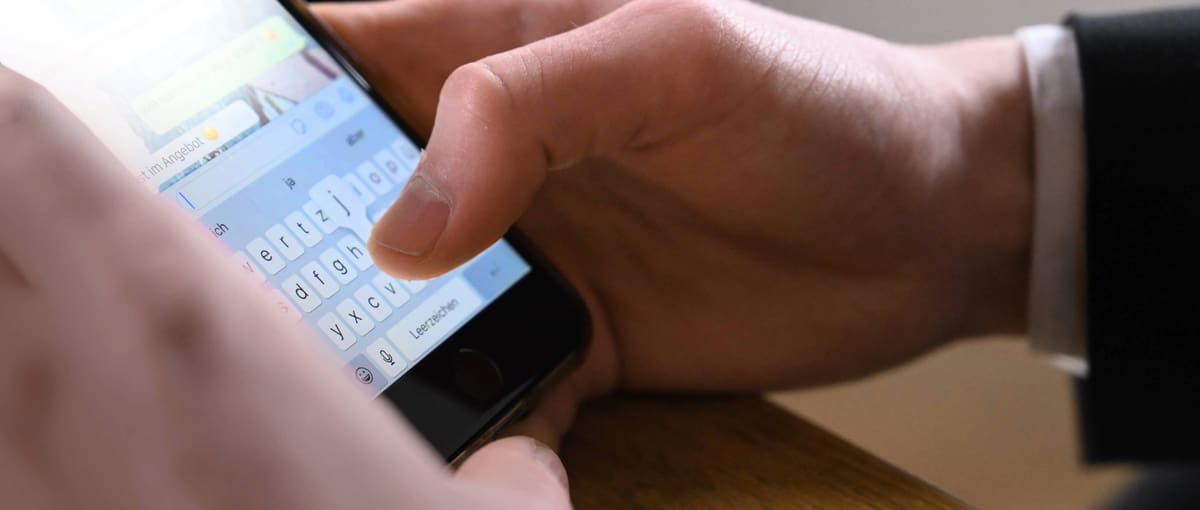
Type faster on your phone – here’s how!
In our daily lives, we constantly reach for our smartphones: for WhatsApp messages, emails, social media, or even work-related communication. For many people, it’s worth learning to type faster on their phones, as this not only saves time but also makes communication more efficient overall. This skill is especially useful when you’re on the go, such as on the bus or between appointments. To help you make fewer mistakes and keep your messages from taking longer than necessary, here’s how you can learn to type faster on your phone and which settings can help you do so.
The most important basics for faster typing on your phone
How fast someone types on a cell phone can vary greatly. While inexperienced users often type with just one finger and rather slowly, experienced users achieve significantly higher speeds—simply through better technique and routine. The good news: Typing faster on a cell phone is easy to learn, as it’s more a matter of practice and the right settings on your phone. With the right basics, you can type much more efficiently:
The right posture & finger position:
- - Use both thumbs instead of just one finger
- - Type with both hands whenever possible to react faster
- - Hold your smartphone steady so you can type more accurately
Set up the right keyboard:
- - Adjust the keyboard size to fit your hands
- - Enable word suggestions for faster typing
- - Use a keyboard that suits your typing style
Develop muscle memory:
- - Repetition leads to greater speed
- - Trust your intuition instead of constantly looking at the keyboard
- - The more you type, the more automatic your movements become
With these basics alone, many people already find it easier to type faster on their phones. There are also other tips for typing faster on your phone and optimizing your device.
Use autocorrect wisely
Many people turn off autocorrect because it sometimes makes mistakes and is perceived as annoying. However, it is one of the most important tools for typing faster on your phone and thus saving time. To do this, you first need to let your autocorrect learn, because it…
- - remembers frequently used words.
- - adapts to your writing style.
- - recognizes common typos and corrects them automatically.
To get the most out of your autocorrect, you can do the following:
- - Keep autocorrect enabled and give it time to learn.
- - Add your own words (e.g., names or technical terms).
- - Actively use word suggestions instead of typing everything out in full.
Example: If you frequently type “I’m on my way,” the keyboard will quickly suggest this phrase automatically. Then you just need to tap and confirm.
Swipe Instead of Typing
A method often underestimated for typing faster on a phone is so-called swipe typing. With this method, you swipe your finger across the letters instead of tapping them individually. Here’s how it works:
- - You drag your finger from letter to letter.
- - The keyboard automatically recognizes the desired word.
- - You don’t lift your finger until you reach the end of the word.
For many people, this method proves to be advantageous because it requires fewer individual movements and allows longer words to be entered more quickly. In addition, many keyboards support this feature, such as Microsoft SwiftKey or Gboard.
Use abbreviations
One of the easiest tricks for typing faster on your phone is to use abbreviations and text blocks. Instead of typing out entire sentences, you define your own shortcuts. For you, this method means that you…
- - Save time on frequently used phrases.
- - significantly reduce the amount of typing.
- - can write entire sentences with just a few letters.
You can easily set up these shortcuts as custom shortcuts in your phone's keyboard settings and assign full words or phrases to them. Common examples:
- - adw → “on my way”
- - lg → “Best regards”
Optimize dictionary
Your keyboard’s autocomplete feature is another great tool for learning to type faster on your phone, but it’s only as good as the dictionary behind it. If you actively use and maintain it, you can type much faster.
Here’s what you should keep in mind:
- - Save frequently used words
- - Remove incorrect or annoying suggestions
- - Add your own terms (e.g., names, places, technical terms)
This way, your keyboard will suggest the right words faster, and you’ll have to type less. The better your personal dictionary is customized, the more efficiently you’ll be able to type in your daily life.
Use the dictation feature
Especially for longer messages, typing isn’t always the fastest solution—the dictation feature on your smartphone is. This is particularly useful for:
- - detailed messages or emails
- - long trips
- - very quick replies
To activate the dictation feature, tap the microphone icon on your keyboard and then speak clearly and at a normal pace. Afterward, you can quickly review and correct the text. However, make sure your surroundings are quiet enough and that you say punctuation marks as you speak (“period,” “comma”).
Learn to type faster with mobile apps
If you want to specifically improve your typing speed, special apps can also help. These often offer structured exercises to measure your progress or train your accuracy. Many of the apps are also suitable for
- - learn the 10-finger typing system,
- - reduce your error rate,
- - and establish a good routine.
Good examples of such mobile apps are:
- - Microsoft SwiftKey: smart keyboard with a learning feature
- - TastenKasten: Fun Typing Practice
- - Tipp10: Structured typing training
- - FastFingers: Focus on speed and reaction time
Specific exercises to type faster on your phone
In addition to apps, you can also practice specifically in your daily life to type faster on your phone. Just a few minutes a day are enough to see progress:
- - Daily mini-exercises (2–5 minutes): short, regular training sessions
- - Type slowly and accurately: focus on accuracy first, then increase speed
- - Copy familiar texts: trains routine and motor skills
- - Chat practice in everyday life: treat every message as an exercise
Consistency is key. The more you type, the more automatic your movements become, and that’s exactly what makes you faster in the long run—whether you use your smartphone intensively or more flexibly with a prepaid plan.
FAQ on typing faster on your phone
You can find more articles about landlines, mobile phones, and your home network on our TalkTalk blog.